Last reviewed: July 25, 2026
GuardPick snapshot
The short version
Windows Update is the best driver updater for most Windows users because it is built in, conservative, and requires no extra subscription. Use official manufacturer tools for hardware-specific updates. Consider Driver Booster only when those routes leave devices unidentified.
Best for
Windows users deciding whether they need a paid driver updater, especially after reinstalling Windows or troubleshooting unknown hardware.
Avoid if
Every device works, Device Manager has no warnings, and Windows Update or the PC manufacturer already supplies the drivers you need.
Main tradeoff
Third-party tools can save time across mixed hardware, but add matching risk, commercial prompts, and another background utility.
Safer alternative
Windows Update first, followed by the PC or component manufacturer's official support tool.
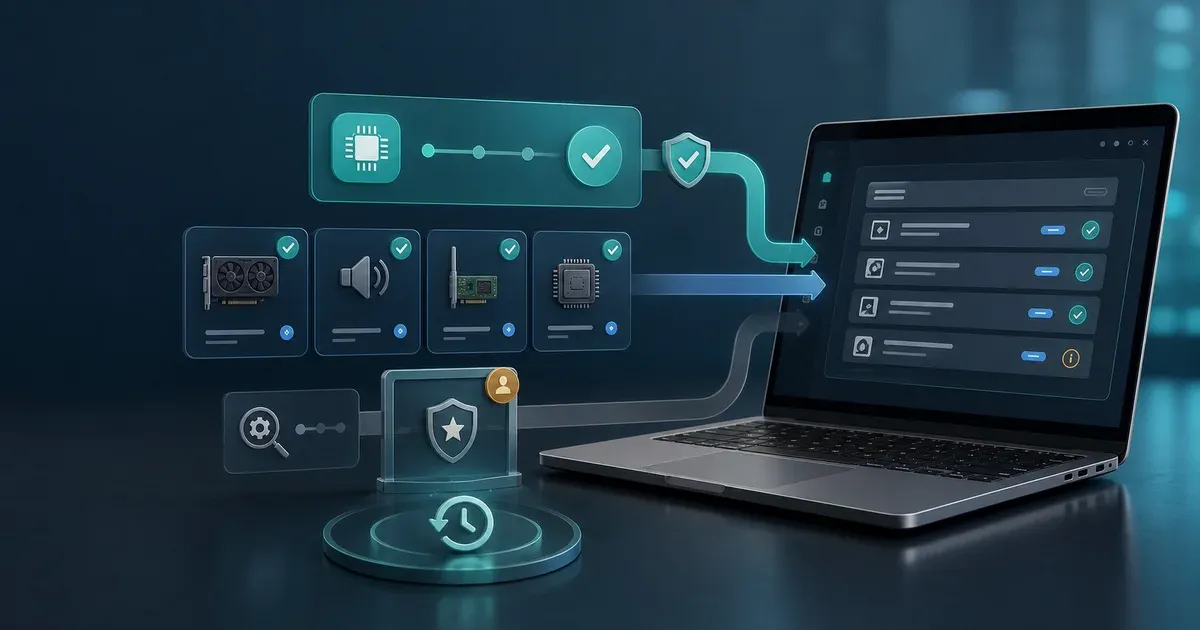
The best driver updater is not necessarily a separate program. On a typical Windows 11 laptop or desktop, the sensible order is Windows Update, the PC manufacturer’s support channel, then the component manufacturer.
Microsoft says Windows automatically downloads and installs recommended drivers. Optional packages can be reviewed under Settings → Windows Update → Advanced options → Optional updates. Microsoft also advises checking the hardware manufacturer’s website when Windows cannot find a suitable driver (Microsoft Support).
That gives third-party driver updaters a narrower role than their advertising suggests.
Quick picks
Best-list matrix
Quick pick matrix
Use this as a first-pass filter before comparing prices, renewals, and bundled extras.
Windows Update
Best for
Most Windows 11 home and office PCs.
Why it fits
Built in, free, and designed to deliver recommended driver packages through Microsoft's update process.
Watch out
Some newer or optional drivers require a manual check, and specialist hardware may still need its manufacturer's package.
Official manufacturer tools
Best for
Gaming graphics, laptops, prebuilt PCs, and Intel, AMD, or NVIDIA hardware.
Why it fits
The driver comes from the company responsible for the PC or component, with release notes and hardware-specific support.
Watch out
Use the PC maker's package first when a laptop depends on custom power, audio, touchpad, or hotkey integration.
Driver Booster 13
Check current priceBest for
Older, rebuilt, or mixed-hardware PCs with multiple unidentified devices.
Why it fits
A broad third-party catalog and batch workflow can reduce manual hunting when Windows and OEM tools fall short.
Watch out
Review matches before installing, expect IObit cross-promotions, and do not treat every flagged driver as necessary.
Which option should you use?
Decision flow
Choose the lowest-risk driver source
Use this quick decision path before paying for another security suite.
- 01
Everything works normally
No Device Manager warnings, crashes, missing features, or hardware compatibility problems.
Let Windows Update handle routine drivers. There is no benefit in changing stable drivers just to increase version numbers.
- 02
You need a graphics or game-specific fix
A new game, application, or release note calls for a newer GPU driver.
Use the NVIDIA app, AMD Software: Adrenalin Edition, or Intel's official support channel.
- 03
A laptop or prebuilt feature is broken
Power modes, touchpad gestures, audio controls, Wi-Fi, or hotkeys stopped working.
Check the PC manufacturer's model-specific support page or updater before using a generic driver.
- 04
Several devices remain unknown after reinstalling
Windows Update and the PC maker cannot identify older or unusual components.
Try hardware IDs and official sources first. Driver Booster can be a time-saving fallback if you review each match and preserve a rollback path.
1. Windows Update: best for most people
Windows Update is not always the fastest source for a newly released graphics driver, but it is the right baseline. It handles routine device support without adding a scanner, subscription, or separate update service.
Check Optional updates when a device is not working correctly. Do not install every optional driver simply because it appears there; optional packages are choices, not a diagnosis.
2. Manufacturer tools: best for specific hardware
For a laptop or branded desktop, begin with Dell, HP, Lenovo, ASUS, Acer, or the relevant PC maker. Model-specific packages may include customizations that a generic component driver does not.
For individual components:
- NVIDIA app manages supported GeForce drivers and game-oriented releases (NVIDIA).
- AMD Software: Adrenalin Edition is AMD’s official graphics software and driver channel (AMD).
- Intel Driver & Support Assistant identifies supported Intel hardware and offers available updates (Intel).
Download from the official vendor domain. Avoid search ads and third-party “driver download” sites.
3. Driver Booster: best as a fallback
IObit currently markets Driver Booster 13 for Windows and says its catalog covers drivers from more than 1,200 brands. It also describes WHQL checks, its own review process, and automatic restore points (IObit). Those are vendor claims, not a guarantee that every match is ideal for every PC.
Driver Booster makes the strongest case after a clean Windows installation on older or mixed hardware. If it identifies several missing devices that official sources have not solved, paying for batch convenience can be reasonable.
It is a weak purchase when the scan merely labels many working drivers “outdated.” The count is not evidence that your PC is slow, unsafe, or broken.
Myth check
Myth vs reality
Security advice gets noisy fast. These are practical corrections for normal users, not scare tactics.
Myth
Every outdated driver slows down Windows
Reality
Slow startup, limited storage, heat, background software, and aging hardware are more common causes. A routine driver version change rarely transforms general PC speed.
GuardPick take
Troubleshoot the symptom before buying the cure.
Update a driver when it addresses a documented problem, compatibility need, or security issue.
Myth
The newest driver is always the safest choice
Reality
New releases can fix problems and introduce regressions. Laptop makers may also validate older model-specific packages.
GuardPick take
Source and fit matter more than the largest version number.
Read release notes, preserve rollback options, and update the hardware related to your actual problem.
Myth
A free scan proves you need the paid repair
Reality
A scanner's result is also its sales funnel. A long list may include optional or low-impact changes.
GuardPick take
Verify important findings in Device Manager, Windows Update, or the manufacturer's support page.
Pay only when the tool solves a real identification or time-cost problem.
Safe driver-update checklist
Practical checklist
Before you install a driver
A few checks make recovery easier if the update causes instability.
Use a controlled process
- Finish Windows Update and restart before diagnosing missing devices.
- Confirm the hardware model or Device Manager hardware ID.
- Prefer Microsoft, the PC maker, or the component maker as the source.
- Create a restore point before a large batch update.
- Update a few important drivers at a time instead of changing the whole system blindly.
- Keep the previous graphics or network driver available in case you need to roll back.
GuardPick recommendation
Start free. If Windows Update and official tools leave no warnings, stop there. If an older rebuilt PC still has several unknown devices, run Driver Booster as a second opinion, review the proposed matches, and use its rollback safeguards before installing.
Check current priceEditorial method
How this was checked
GuardPick reviews combine a real-world Windows user angle with source checks, pricing context, and safer alternatives. We are not an antivirus lab, and we do not treat affiliate payouts as a recommendation signal.
- 01
Real-world angle
We look at whether the product makes sense for normal Windows users, not only benchmark charts.
- 02
Independent research
When lab data is used, we name the source and date instead of repeating vague marketing claims.
- 03
Pricing check
Intro prices, renewal jumps, trial limits, and cancellation friction are part of the verdict.
- 04
Alternatives considered
Windows Defender and lower-cost options stay on the table when paid software is not necessary.
Related reading: Driver Booster review · How to tell if a download is safe