Last reviewed: July 4, 2026
GuardPick snapshot
The short version
Chromebook is architecturally different from Windows. The antivirus question has a different answer here — and most of the time, that answer is that built-in protections are sufficient.
Best for
Chromebook users who want to understand what ChromeOS actually protects against and where the gaps are — not a list of paid products to buy.
Avoid if
You are looking for Windows-style antivirus to install on a Chromebook — that is not how ChromeOS works.
Main tradeoff
ChromeOS's architecture is inherently more resistant to traditional malware. The risk areas are different: phishing, Android apps, and account security.
Safer alternative
ChromeOS built-in security: Verified Boot, sandboxing, automatic updates, Google Play Protect for Android apps.
Chromebooks were designed for a threat environment that Windows predated. Google made security architectural decisions from the start that Windows accumulated over decades of patches.
That does not mean Chromebooks are invulnerable. It means the threat surface is different, and the protections look different.
How ChromeOS security works
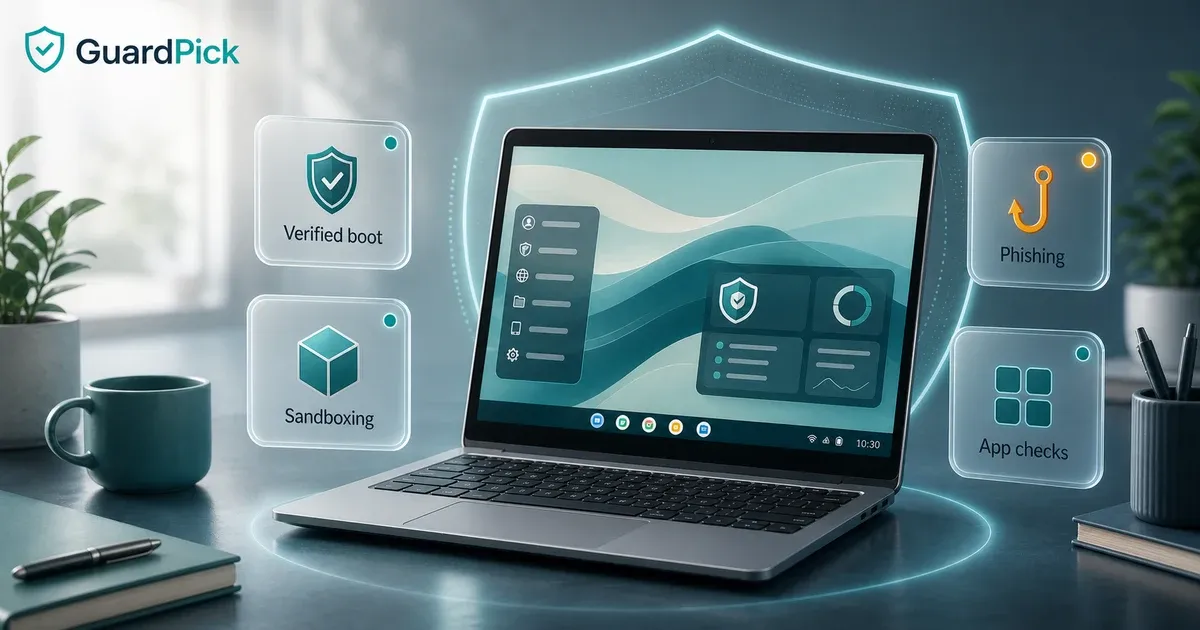
Verified Boot runs every time the Chromebook starts. It checks the OS for tampering. If anything does not match, it restores the OS automatically to a known-good state. Most malware that survives a Windows reboot would be removed by Verified Boot on ChromeOS.
Sandboxing isolates browser tabs, browser extensions, and Android apps from each other and from the OS. A malicious site in one tab cannot read data from another tab’s banking session.
Read-only OS partition means the core operating system is not writable during normal use. Malware that installs itself as a persistent system process — a common Windows attack pattern — cannot function the same way on ChromeOS.
Automatic updates are applied silently in the background and take effect on next restart. Users do not experience the Windows-style “pending update for 6 months” situation.
Google Play Protect runs automatically on Chromebooks that support Android apps. It scans installed Android apps against Google’s malware database.
Where Chromebook security has gaps
Myth check
Myth vs reality
Security advice gets noisy fast. These are practical corrections for normal users, not scare tactics.
Myth
Chromebooks are completely immune to security threats
Reality
Phishing attacks work on any browser on any platform. Malicious Android apps can be installed via the Play Store (Play Protect helps but is not perfect). Browser extensions with excessive permissions can misuse access. Google account compromise is a real risk on any device connected to a Google account.
GuardPick take
ChromeOS reduces the attack surface dramatically compared to Windows. It does not eliminate all risks.
Secure your Google account with 2FA. Be skeptical of phishing links. Review browser extension permissions before installing.
Myth
You need Windows-style antivirus on a Chromebook
Reality
Traditional antivirus for Windows cannot run on ChromeOS. Android security apps can run via the Play Store on Chromebooks with Android app support. But the architectural protections in ChromeOS address most of what Windows antivirus is compensating for.
GuardPick take
Buying traditional antivirus for a Chromebook is not possible — it will not install. The question is whether Android-based security apps add enough value to justify the cost.
Use Malwarebytes for Android (via Play Store) if you want a second layer for Android app scanning. Google Play Protect handles most of this automatically.
Myth
Developer mode is fine to enable for convenience
Reality
Developer mode disables Verified Boot. This removes one of ChromeOS's most significant security features. On a personal or family Chromebook used for everyday tasks, there is rarely a reason to enable developer mode.
GuardPick take
Leave developer mode off unless you specifically know why you need it.
Do not enable developer mode on a shared or primary Chromebook used for everyday browsing and email.
What actually secures a Chromebook
Practical checklist
Chromebook security that matters
Most Chromebook security comes from architecture and account settings, not third-party apps.
Do these
- Keep ChromeOS updated — updates apply automatically, restart when prompted.
- Secure your Google account with two-factor authentication.
- Use a strong, unique password for your Google account.
- Only install Android apps from the Google Play Store.
- Review browser extension permissions before installing — extensions are the most common source of Chromebook security issues.
- Avoid developer mode on a primary or shared Chromebook.
Be skeptical of these
- Phishing links in email, SMS, and messaging apps — these work on any platform.
- Browser extensions that request access to all sites and your browsing data.
- Android apps from outside the Play Store (sideloading APKs).
- Unsolicited 'your Chromebook has a virus' alerts — these are always scams on ChromeOS.
When a third-party app adds value
For most Chromebook users: no third-party security app is needed. The architecture handles it.
For Chromebook users who heavily use Android apps from the Play Store, Malwarebytes for Android (installed via the Play Store) can add a second layer of scanning alongside Play Protect. It is lightweight and does not require root or elevated permissions.
For users who want VPN protection on public Wi-Fi, a standalone VPN app or a security suite’s VPN feature (installed as an Android app) is the practical option.
Who each scenario applies to
Audience match
Match the pick to the person
The safest choice changes by habits, budget, and who manages the device.
Reader profile
Standard Chromebook user, web browsing and email
Recommended choice
ChromeOS built-in security only
Why
Verified Boot, sandboxing, and automatic updates cover standard threat vectors. No third-party app needed.
Avoid / watch out
Phishing is still a real risk — stay skeptical of unexpected links.
Reader profile
Chromebook user who installs many Android apps
Recommended choice
Google Play Protect (already running) + optional Malwarebytes for Android
Why
Android apps carry more risk than web pages on ChromeOS. Play Protect handles most of it; Malwarebytes adds a secondary layer.
Avoid / watch out
Free version of Malwarebytes does not include real-time protection.
Reader profile
Chromebook user on public Wi-Fi regularly
Recommended choice
A VPN app (from Play Store or standalone)
Why
VPN encrypts traffic on public networks. A security concern on any device on any platform.
Avoid / watch out
Free VPNs often sell your data. Use a reputable paid VPN.
Editorial method
How this was checked
GuardPick reviews combine a real-world Windows user angle with source checks, pricing context, and safer alternatives. We are not an antivirus lab, and we do not treat affiliate payouts as a recommendation signal.
- 01
Real-world angle
We look at whether the product makes sense for normal Windows users, not only benchmark charts.
- 02
Independent research
When lab data is used, we name the source and date instead of repeating vague marketing claims.
- 03
Pricing check
Intro prices, renewal jumps, trial limits, and cancellation friction are part of the verdict.
- 04
Alternatives considered
Windows Defender and lower-cost options stay on the table when paid software is not necessary.
Related reading: Best antivirus for Android · Best antivirus software overall
Sources
- Google Chromebook security documentation
- Google Play Protect documentation
- Malwarebytes for Android product information