My mother called me three times in one week because her computer was showing “critical warnings.”
Each time, I remoted in and found the same thing: her old antivirus had expired and replaced the expired warning with an upsell popup.
Not a virus. Just software acting like one.
That experience changed how I think about antivirus for seniors. For this audience, the “best” antivirus is not the one with the longest feature list. It is the one that protects quietly, explains problems clearly, and does not create panic with confusing alerts or surprise renewal charges.
This guide is about what I would actually install for an elderly parent — not what looks best on an affiliate comparison table.
Quick picks
| Pick | Best for | Why |
|---|---|---|
| Bitdefender Total Security | Best paid option for most seniors | Strong independent lab results, simple status screen, good set-and-forget protection |
| ESET HOME Security Essential | Older or slower PCs | Lighter-feeling software, fewer upsell-style interruptions, good protection |
| Microsoft Defender | Careful Windows 11 users | Free, built into Windows, no renewal traps |
| Malwarebytes Premium | Extra cleanup layer | Useful for adware, unwanted programs, and second-opinion scans |
| Norton 360 Deluxe | Only with family oversight | Strong protection, but renewal pricing needs active management |
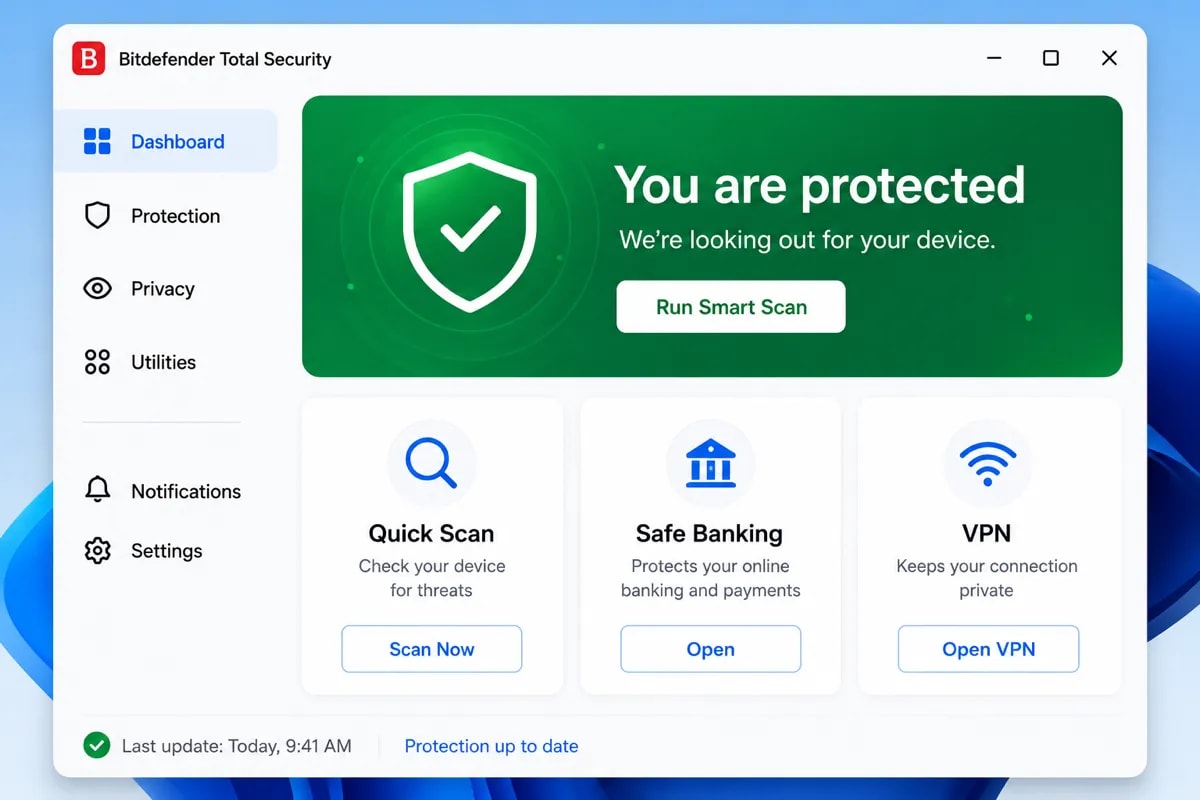
For seniors, a simple “protected” screen is better than a dashboard full of warnings, charts, and upgrade prompts.
What makes antivirus good for seniors specifically
Most antivirus roundups focus on detection rate, VPN features, identity protection, password managers, and parental controls.
Those things matter. But for seniors, I care about five simpler questions first.
Does it stay quiet?
A senior should not have to answer technical prompts every few days. If the product keeps asking them to approve routine actions or buy add-ons, it creates anxiety instead of confidence.
Does it have one clear status screen?
Green means protected. Red means call someone trusted. That is enough. Threat graphs and activity logs may be useful for technical users, but they are not helpful for someone who only wants to pay bills and check email.
Is the renewal price obvious?
Many antivirus products use first-year discounts. That is not automatically bad, but it becomes a problem when the year-two price surprises someone on a fixed income.
Can a family member manage it?
The best setup is often one where a son, daughter, nephew, niece, or trusted friend installs the software, receives renewal emails, and checks the dashboard occasionally.
Does it avoid scare tactics?
This is the big one. Seniors are already common targets for tech support scams. Antivirus software should not train them to panic-click every red warning.
The honest answer before the list
For careful seniors on Windows 11, Microsoft Defender may be enough.
It is built into Windows, provides real-time protection, and does not have renewal traps. Microsoft’s Windows Security app includes Microsoft Defender Antivirus, firewall protection, and other built-in security features.
That does not mean paid antivirus is useless. It means you should not buy one out of fear.
A paid antivirus makes more sense if the senior:
- uses online banking regularly
- clicks email links without checking carefully
- downloads attachments from friends or groups
- shares the computer with other family members
- has already installed suspicious browser extensions or “PC cleaner” tools
- needs someone else to manage protection and renewals
If your parent mostly uses the same few trusted sites, avoids downloads, and calls before clicking strange warnings, start with Microsoft Defender and good habits.
If not, use one of the paid options below.
Best antivirus for seniors in 2026
1. Bitdefender Total Security — Best paid option for most seniors
Bitdefender is my first paid pick for most seniors because it combines strong independent lab results with a clean enough user experience.
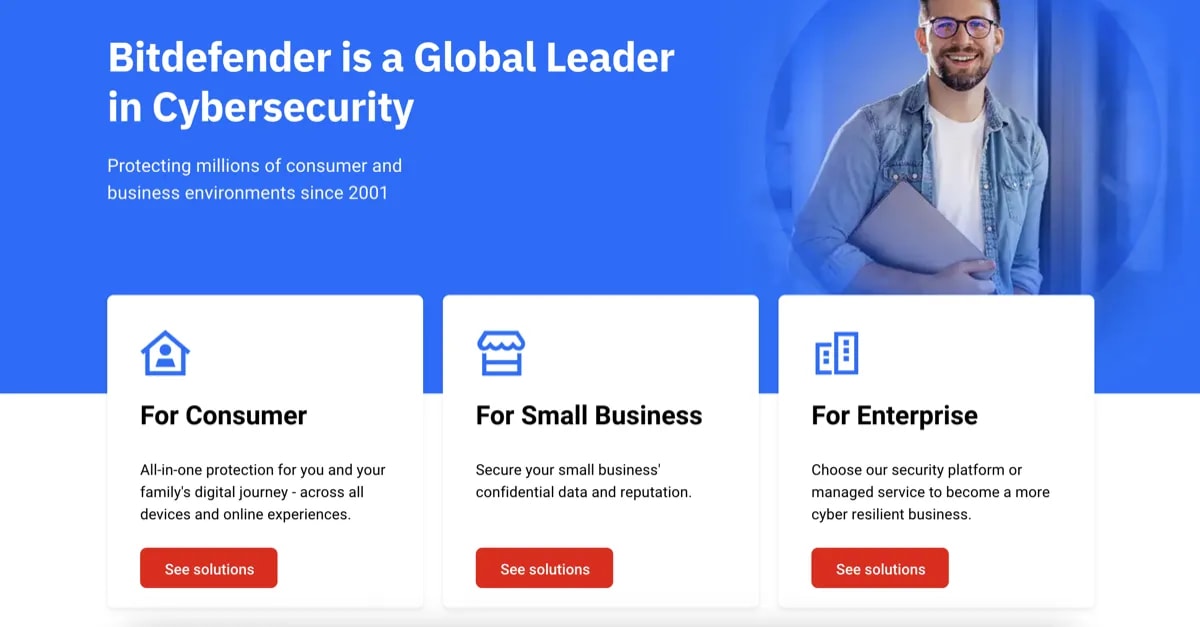
Bitdefender is the paid option I would choose for most seniors because the main status screen can be simple, quiet, and easy for a family member to check.
In AV-TEST’s April 2026 Windows 11 home-user test, Bitdefender Total Security scored 6/6 for Protection, 6/6 for Performance, and 6/6 for Usability. In AV-Comparatives’ February–May 2026 Real-World Protection Test, Bitdefender had a 99.5% protection rate across 400 test cases.
Those results do not mean “perfect protection.” No antivirus can promise that. But they do support Bitdefender as a serious product, not just a familiar brand name.
The reason I like it for seniors is simpler: once set up, it can run quietly. The main dashboard is easy to understand, and a family member can install it, turn on automatic updates, and leave the senior alone unless something actually needs attention.
The downside is pricing. Bitdefender’s public pricing changes by region and campaign, and discounted first-year pricing can renew at a higher price later. If you install it for a parent, set a calendar reminder before renewal.
Pricing
First year
$59.99
Renewal (year 2+)
$109.99 +83%
⚠️ Note: renewal price increases significantly after year 1. Set a calendar reminder before auto-renewal.
Prices last checked: Jun 2026. May vary. Affiliate disclosure.
Best for: Seniors who need quiet paid protection and have a family member who can manage billing.
Avoid if: Nobody will check the renewal date.
My setup note: Use your email address for the Bitdefender account if you are managing this for a parent. Renewal emails should go to you, not to someone who may panic or ignore them.
2. ESET HOME Security Essential — Best for older or slower PCs
ESET is the option I would consider when the computer is older, slower, or already feels heavy.
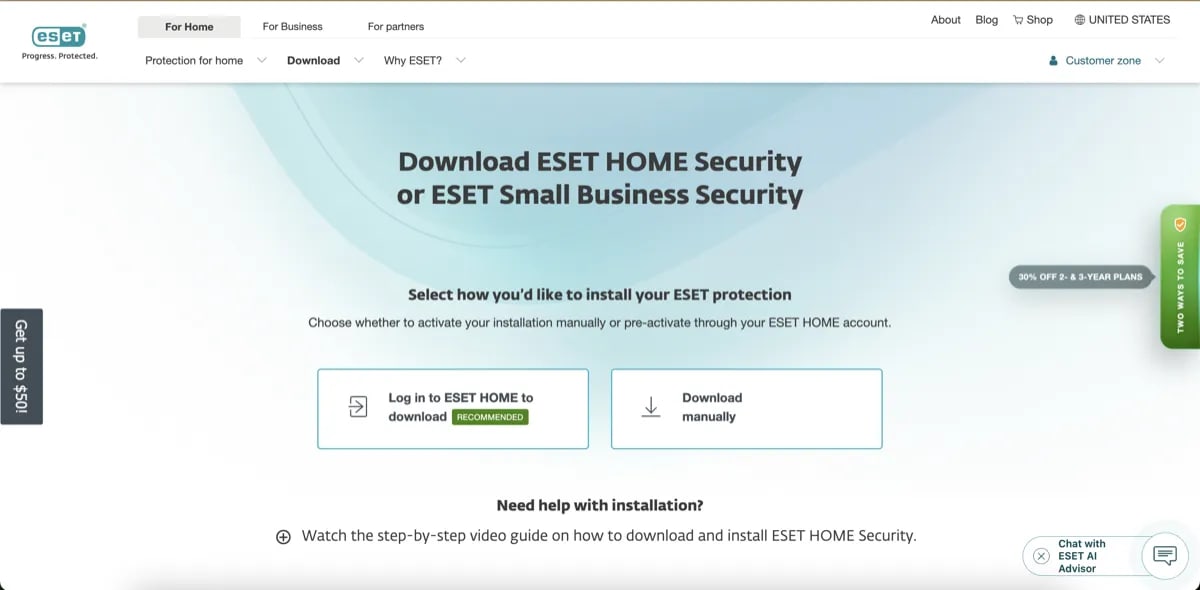
ESET is a better fit when the senior’s computer is older, slower, or easily affected by heavy security suites.
It is not as beginner-polished as Bitdefender, but it tends to feel less intrusive. That matters for seniors because every unnecessary popup becomes a decision point.
ESET also has a good reputation among users who dislike bloated security suites. In AV-TEST’s April 2026 Windows 11 test, ESET Security Ultimate scored 6/6 for Protection, 5.5/6 for Performance, and 6/6 for Usability. In AV-Comparatives’ February–May 2026 Real-World Protection Test, ESET had a 98.5% protection rate.
For seniors, that trade-off is acceptable if the computer is older and the family wants fewer interruptions.
Product naming note: ESET’s consumer lineup now uses names like ESET HOME Security Essential. Many people still search for “ESET Internet Security,” but the current naming has changed.
Pricing
First year
$59.99
Prices last checked: Jun 2026. May vary. Affiliate disclosure.
Best for: Seniors using older Windows laptops or families who want lighter protection.
Avoid if: You want the simplest possible interface. Bitdefender is easier for that.
My setup note: ESET is better when a family member does the initial configuration. After that, it can be left mostly alone.
3. Microsoft Defender — Best free baseline for careful Windows 11 users
Microsoft Defender is the option most affiliate sites do not want to recommend too clearly because it does not pay a commission.
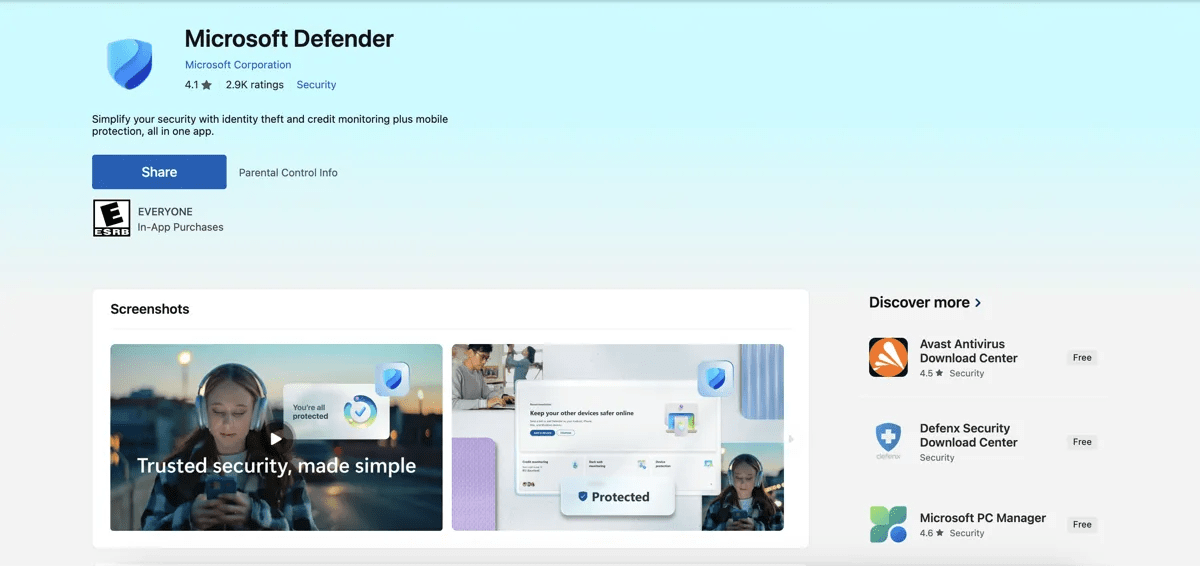
Microsoft Defender is the free baseline I would start with for careful Windows 11 users because it has no checkout add-ons or renewal traps.
But for careful seniors, it is a legitimate baseline.
It is free, built into Windows, and does not come with checkout add-ons or renewal pricing. In AV-TEST’s April 2026 Windows 11 home-user test, Microsoft Defender Antivirus scored 6/6 for Protection, 6/6 for Performance, and 6/6 for Usability. In AV-Comparatives’ February–May 2026 Real-World Protection Test, Microsoft had a 99.0% protection rate.
That is good enough for many people.
The main weakness is not that Defender is “bad.” It is that seniors often face risks antivirus alone cannot solve: phishing emails, fake support popups, scam phone numbers, and remote access tricks.
So my recommendation is:
Use Microsoft Defender if the senior is careful, uses a modern Windows 11 PC, and has someone they can call before clicking suspicious warnings.
Upgrade to a paid option if they are more likely to click first and ask later.
Best for: Careful seniors who mostly use trusted websites, email, video calls, and basic documents.
Avoid if: The computer is already full of browser extensions, fake cleaners, or suspicious downloads.
My setup note: Open Windows Security, check that real-time protection is on, run Windows Update, and remove any expired third-party antivirus that is generating scare popups.
4. Malwarebytes Premium — Best extra cleanup layer
I would not make Malwarebytes my first paid pick for a senior’s only protection.
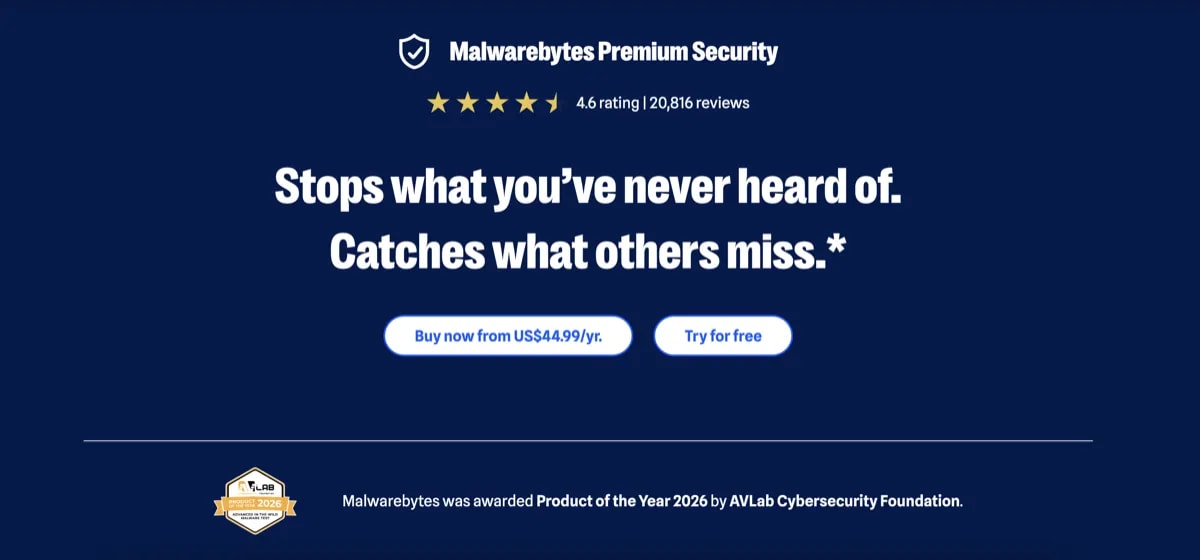
Malwarebytes is most useful as an extra cleanup layer when the real problem is adware, unwanted programs, browser junk, or suspicious popups.
I would treat it as an extra cleanup layer.
Malwarebytes is useful for adware, unwanted programs, suspicious browser behavior, and second-opinion scans. That is relevant for seniors because many real-world problems are not dramatic “movie malware.” They are browser hijackers, fake search engines, unwanted extensions, and sketchy utilities installed by mistake.
In AV-TEST’s April 2026 Windows 11 test, Malwarebytes Premium scored 5.5/6 for Protection, 6/6 for Performance, and 6/6 for Usability. In AV-Comparatives’ February–May 2026 Real-World Protection Test, Malwarebytes had a 98.8% protection rate.
That is respectable, but for this audience I prefer using it as a helper rather than the main recommendation.
Pricing
First year
$44.99
Prices last checked: Jun 2026. May vary. Affiliate disclosure.
Best for: Families who want an extra cleanup tool alongside Microsoft Defender.
Avoid if: You want one simple paid suite and never want to think about security again.
My setup note: Malwarebytes is especially useful after a “something feels wrong” call from a parent. Run a scan, check browser extensions, and remove suspicious apps.
What about Norton 360?
Norton is not a bad antivirus. Protection-wise, it is strong.
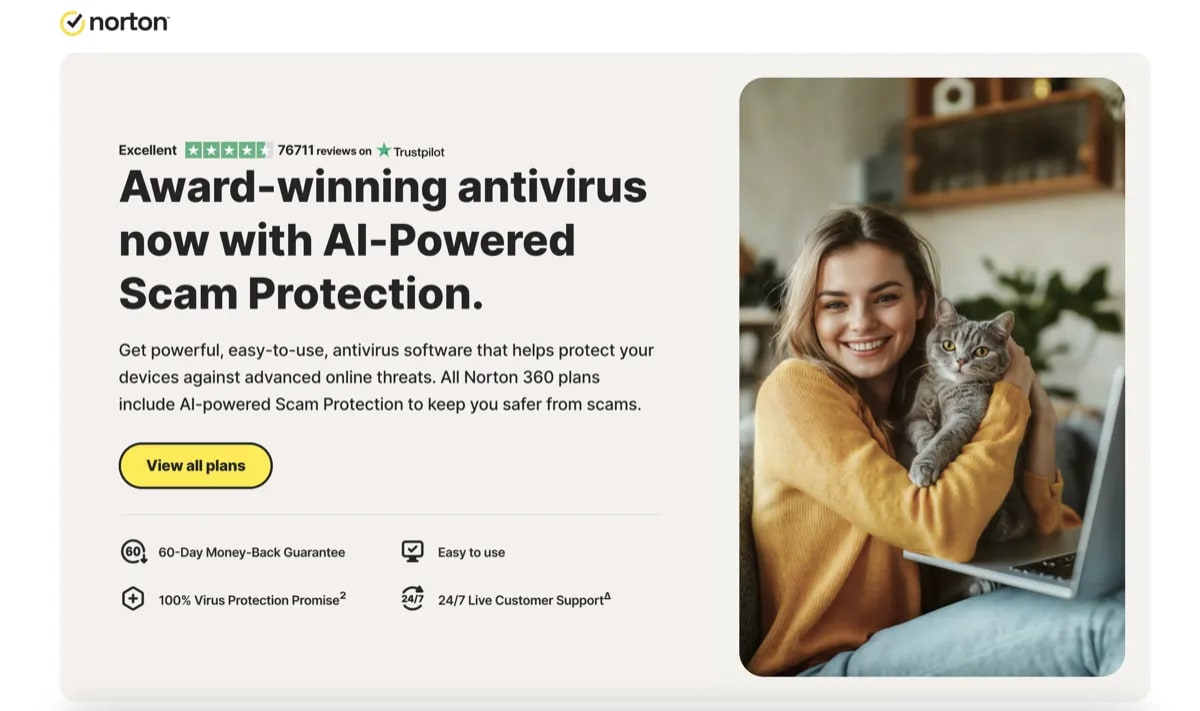
Norton can be a strong security suite, but for seniors I would only use it when a family member actively manages the account, renewal date, and year-two pricing.
In AV-TEST’s April 2026 Windows 11 test, Norton 360 scored 6/6 for Protection, 6/6 for Performance, and 6/6 for Usability. In AV-Comparatives’ February–May 2026 Real-World Protection Test, Norton had a 99.3% protection rate.
The issue for seniors is not protection. It is billing clarity.
Norton’s official US renewal price list, effective March 2026, lists Norton 360 Deluxe, 5 devices, 50GB at $124.99 per year. Promotional first-year pricing can be much lower than that.
For a tech-aware buyer, this is manageable. For a senior on a fixed income, a surprise renewal charge can feel like a betrayal.
So I would only use Norton for a senior if a family member actively manages the account, calendar reminder, and renewal decision.
Best for: Families who want a bundled suite and will manage billing carefully.
Avoid if: The senior will be responsible for understanding renewal pricing alone.
What about TotalAV?
I would not use TotalAV as a primary pick for seniors.
This is not because every part of the software is useless. It is because the billing, renewal, and upsell experience needs more attention than I want to put on a non-technical user.
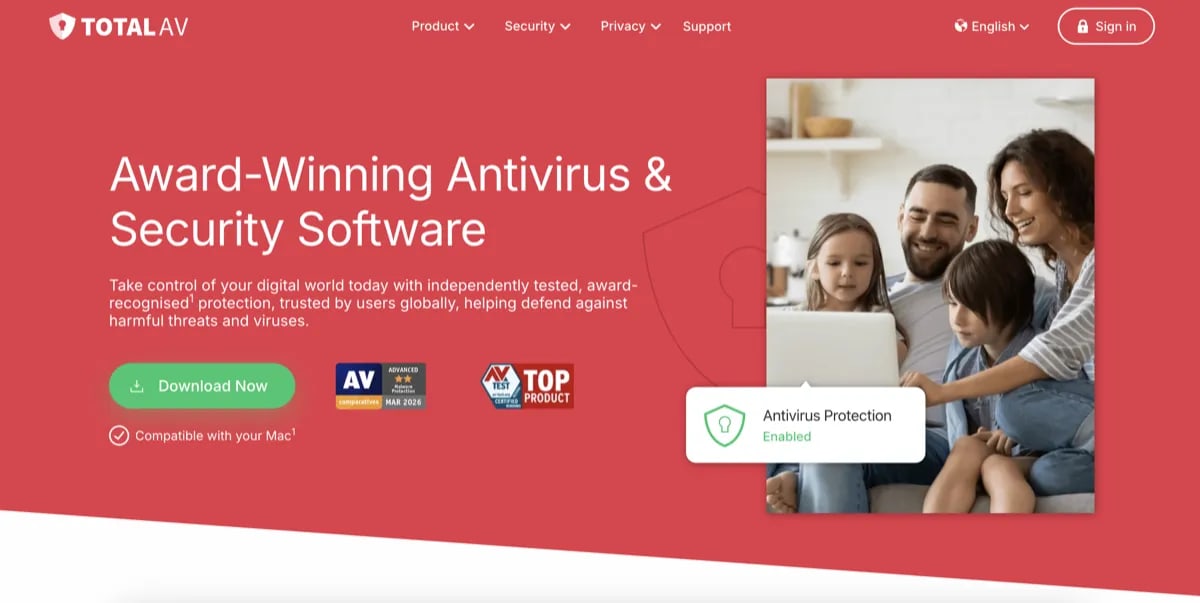
TotalAV is not my primary pick for seniors because the billing, renewal, and upsell experience can create more confusion than I want for a non-technical user.
For seniors, the best antivirus should reduce confusion. It should not add more places where they have to decide whether a warning, add-on, or renewal charge is legitimate.
If TotalAV is already installed on a senior’s computer, I would check:
- the renewal date
- the renewal amount
- whether extra add-ons were purchased
- whether auto-renewal is enabled
- whether the senior understands what they are paying for
That is too much management overhead for this audience.
Pricing comparison
Prices change often, especially during antivirus sales. Treat this table as a snapshot, not a permanent price guarantee.
| Product | First-year pricing | Renewal risk | Trial | My take |
|---|---|---|---|---|
| Microsoft Defender | Free | None | Built in | Best free baseline for careful seniors |
| Bitdefender Total Security | Around $59.99 | Medium to high | 30 days | Best paid pick if family manages renewal |
| ESET HOME Security Essential | Around $59.99 | Lower than many big suites, but varies | Trial available | Best for older PCs |
| Malwarebytes Premium | Around $44.99 | Varies by plan and promo | 14 days | Best extra cleanup layer |
| Norton 360 Deluxe | Promo varies | High | Trial/promo varies | Only with family oversight |
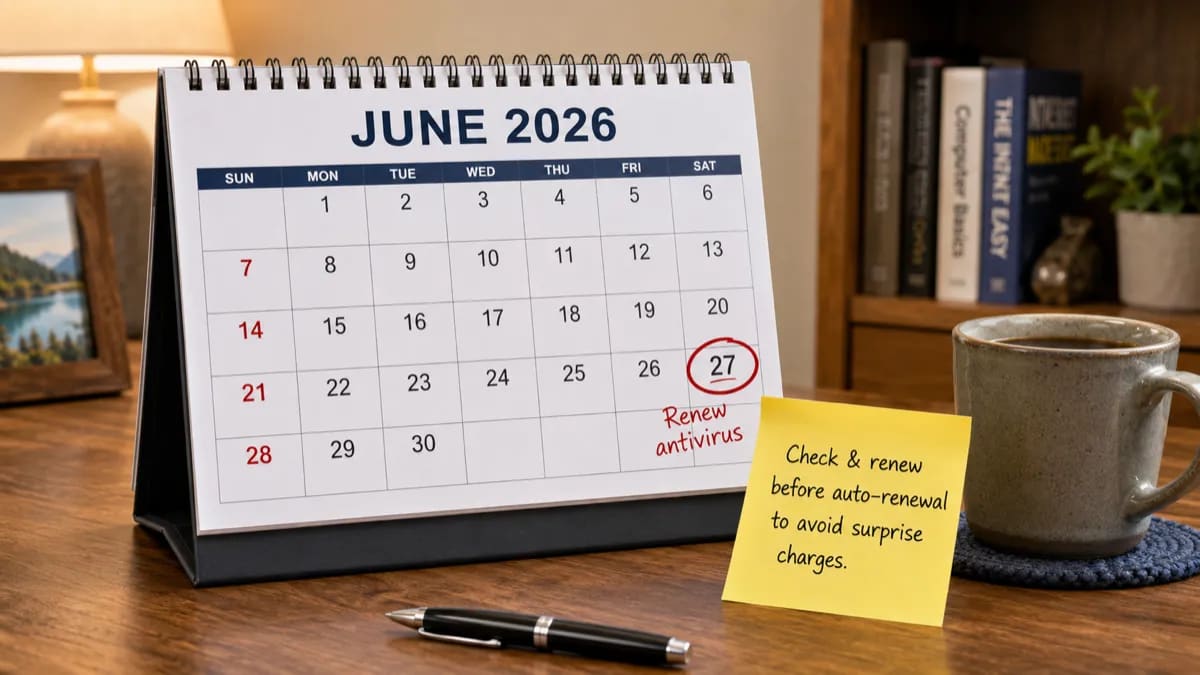
If you install paid antivirus for a parent, set your own renewal reminder before the charge date.
How I would choose for a parent
Here is the simple version.
Choose Microsoft Defender if your parent uses Windows 11 carefully, mostly visits trusted websites, and calls before clicking suspicious warnings.
Choose Bitdefender Total Security if you want stronger paid protection, a simple dashboard, and you are willing to manage the renewal.
Choose ESET HOME Security Essential if the computer is older, slower, or easily bogged down by heavy software.
Choose Malwarebytes Premium if the real problem is browser junk, unwanted programs, or suspicious popups — especially if Microsoft Defender is already enabled.
Choose Norton 360 Deluxe only if you want the bundle and you will personally manage renewal pricing.
Do not choose based on fear. Choose based on the person who will actually use the computer.
How to set it up for a parent
The setup matters more than the brand.
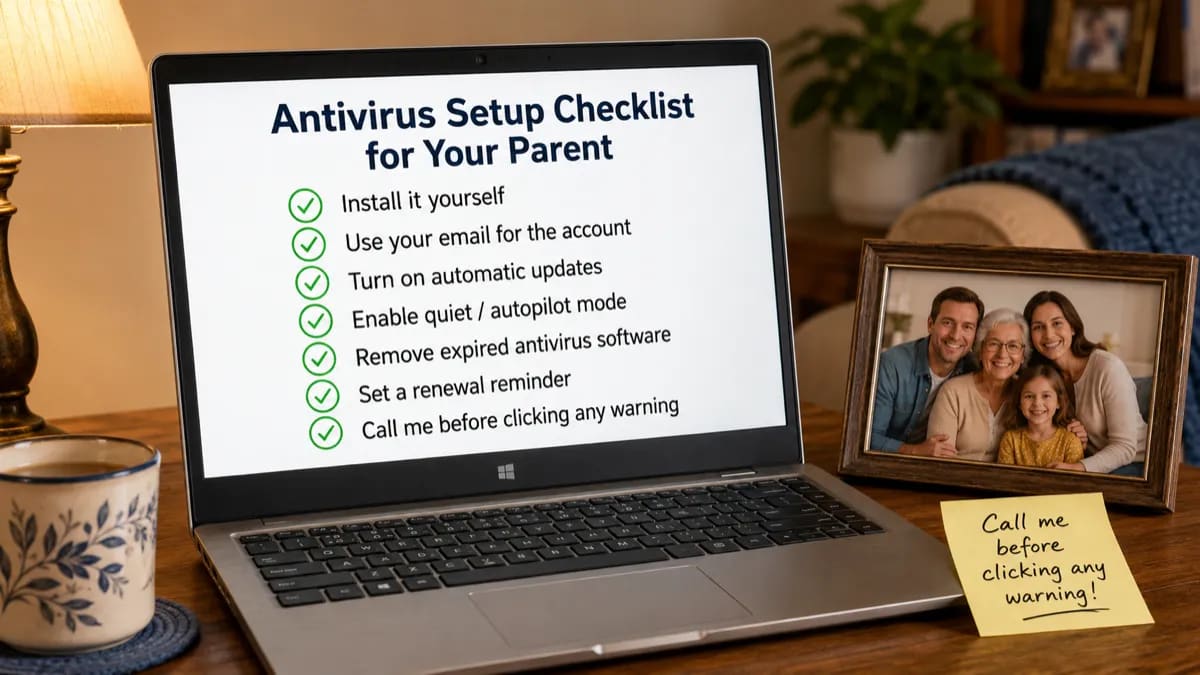
A good setup removes decisions from the senior and sends billing/security alerts to the family member helping them.
Step 1: Install it yourself.
Do not send your parent a checkout link and ask them to figure it out.
Step 2: Use your email for the account.
Renewal notices, security emails, and billing alerts should go to the person who can understand them.
Step 3: Turn on automatic updates.
The senior should not need to update virus definitions manually.
Step 4: Enable quiet, autopilot, or silent mode.
The fewer routine popups, the better.
Step 5: Remove expired antivirus software.
Old security software can create the exact kind of scary warnings you are trying to avoid.
Step 6: Set a renewal reminder.
Put it in your calendar two weeks before the renewal date.
Step 7: Create one family rule.
If a warning asks them to call a phone number, pay money, install remote access software, or click immediately, they should stop and call you first.
One rule matters more than antivirus
Before you even install paid antivirus, create this family rule:
If a warning asks you to call a phone number, install remote access software, or pay immediately, stop and call me first.
Most senior-targeted scams do not need to beat antivirus. They only need the person to panic.
Antivirus helps with malware. It does not fully solve phishing, fake support calls, refund scams, or social engineering.
That is why I would rather pair Microsoft Defender with a good family response rule than install an aggressive antivirus that scares someone into clicking more.
What antivirus will not fix
Antivirus can help block malware, suspicious downloads, and some malicious websites.
It will not fully protect against:
- fake Microsoft support phone calls
- refund scams
- romance scams
- phishing emails that look convincing
- someone being tricked into installing remote access software
- a family member reusing the same password everywhere
- expired software that keeps generating scary popups
For seniors, the best protection is layered:
- keep Windows updated
- use Microsoft Defender or a quiet paid antivirus
- remove old expired antivirus tools
- use a password manager where possible
- turn on two-factor authentication for banking and email
- make it easy to call someone before clicking suspicious warnings
Antivirus is one layer. Do not sell it to your parent as a complete solution.
My final recommendation
For most seniors, I would start with this decision:
- Careful Windows 11 user: Microsoft Defender
- Needs paid protection: Bitdefender Total Security
- Older or slower computer: ESET HOME Security Essential
- Adware or suspicious popup cleanup: Malwarebytes Premium
- Norton: only if a family member manages renewal
My personal pick for a paid setup is Bitdefender Total Security, but only with renewal reminders handled by a family member.
If nobody will manage renewal, I would rather use Microsoft Defender plus good family rules than install a paid antivirus that creates confusion later.
Related reading
- Windows Defender vs Paid Antivirus
- How to Choose Antivirus Software
- Best Free Antivirus for Windows
- TotalAV Review 2026
Sources and last checked notes
I do not run a malware testing lab. I use independent lab results as one input, then judge the product fit for a normal Windows user.
- AV-TEST, Windows 11 home-user test, April 2026: https://www.av-test.org/en/antivirus/home-windows/
- AV-Comparatives, Real-World Protection Test, February–May 2026: https://av-comparatives.org/tests/real-world-protection-test-february-may-2026/
- Microsoft Support, Windows Security and Microsoft Defender Antivirus: https://support.microsoft.com/en-us/windows/security/windows-security/stay-protected-with-the-windows-security-app
- Bitdefender Individual Plans: https://www.bitdefender.com/en-us/consumer/individual
- Bitdefender Renewal Center and renewal terms: https://www.bitdefender.com/en-us/renewal/
- ESET Home Protection Plans: https://www.eset.com/us/home/protection-plans/
- Malwarebytes Pricing: https://www.malwarebytes.com/pricing
- Norton Renewal Price List, effective March 2026: https://us.norton.com/pricing