What You’ll Check
- 10 real warning signs, not just “your PC feels slow”
- Exact Windows steps: Task Manager, Startup apps, network connections, installed programs
- What counts as actual proof versus what’s just a coincidence
- What to do the moment you find something
Experience note: Written after running this exact checklist on my own machine after a close call with a scam command.
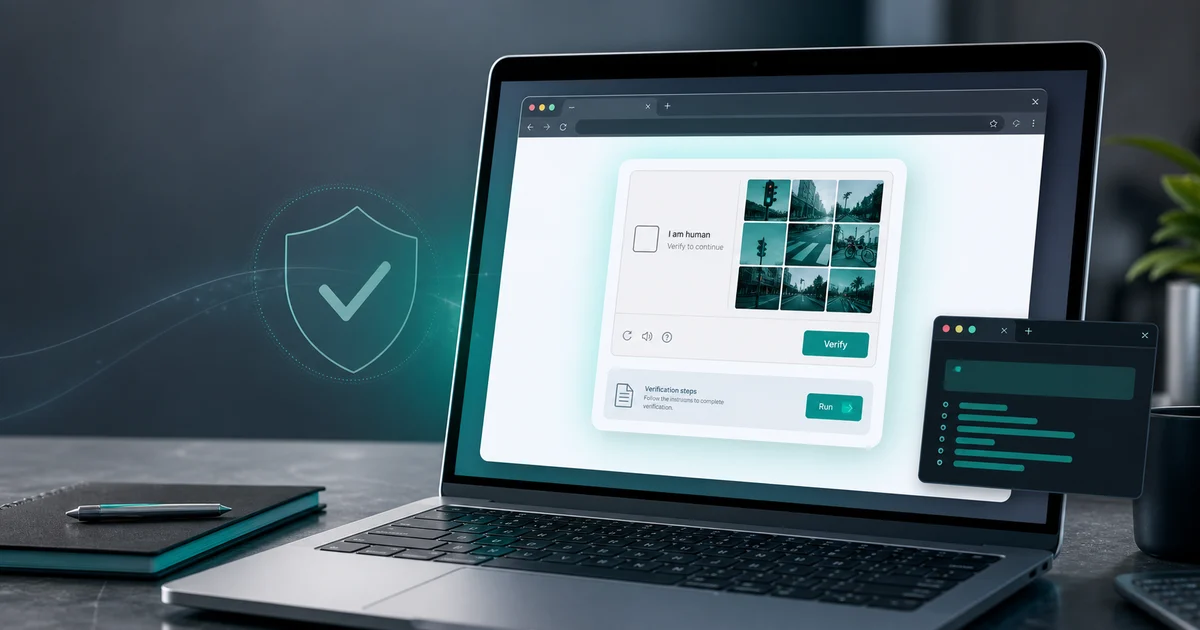
A few weeks ago I came close to running a malicious command on my own laptop, the kind sent through a fake “verify you’re human” page, the type we cover in our ClickFix breakdown. I didn’t press Enter, but the moment made me actually sit down and run the same checks I tell other people to run: startup programs, background processes, network connections, the works. If your worry started with a pasted command, check whether the command was safe and, on Windows, whether it appears in Run history before jumping to worst-case assumptions.
Most guides to “signs your computer has a virus” stop at slow performance and popups. Those are real signs, but they are symptoms, not proof. Malware, bad extensions, broken updates, overloaded browsers, and old hardware can all look similar from the outside. Here’s the fuller list, plus the exact steps to check each one on Windows.
Practical checklist
Before you start clicking cleanup buttons
A malware scare is exactly when bad advice and fake cleanup tools look tempting. Slow down and do the boring checks first.
Do first
- Disconnect from Wi-Fi if files are being renamed, encrypted, or data theft looks active.
- Run a full Windows Security scan or a full scan with your installed antivirus.
- Write down suspicious process names before removing anything.
Check carefully
- Startup apps and scheduled tasks.
- Browser extensions and changed homepage/search settings.
- Network activity from processes you do not recognize.
Avoid
- Do not call phone numbers shown in popups.
- Do not install cleanup tools from search ads.
- Do not assume one slow day proves malware.
The 10 Signs
1. Performance drops with no obvious cause. Not “it’s been slow since I bought it,” but a real change from how the PC behaved a week or a month ago.
2. Popups appear outside your browser. If you see ads or warnings when no browser window is even open, that’s adware or a browser hijacker, not a website being annoying.
3. Your browser’s homepage or default search engine changed itself. You didn’t do it. Neither did anyone else who uses the PC.
4. Programs you don’t remember installing show up in your Start menu or Apps list. Bundled installers are a common delivery method. Malware rides in alongside something you actually meant to download.
5. Your antivirus or Windows Security turns itself off and won’t stay on. Some malware specifically targets security software so it can operate without being flagged.
6. Friends or contacts receive messages or emails from you that you didn’t send. A common sign of a compromised account or a mass-mailing worm.
7. Fans run loudly and the CPU stays busy when the computer is supposedly idle. Cryptomining malware and background data harvesting both show up this way.
8. Network data usage is far higher than your normal habits explain. Something is sending or receiving data in the background.
9. Files are missing, renamed, or you can no longer open them. This is the signature of ransomware, and it’s the one sign where speed matters. Disconnect from the network immediately if you see this.
10. New user accounts, browser extensions, or scheduled tasks you didn’t create. Attackers who gain deeper access often set up a way back in, separate from whatever got them in the first place.
My Experience:
When I ran through this list on my own machine, nothing came back positive. The value wasn’t in confirming I was clean. It was in knowing exactly what “clean” actually looks like on my system, so a future check has something real to compare against.
How to Actually Check (Windows)
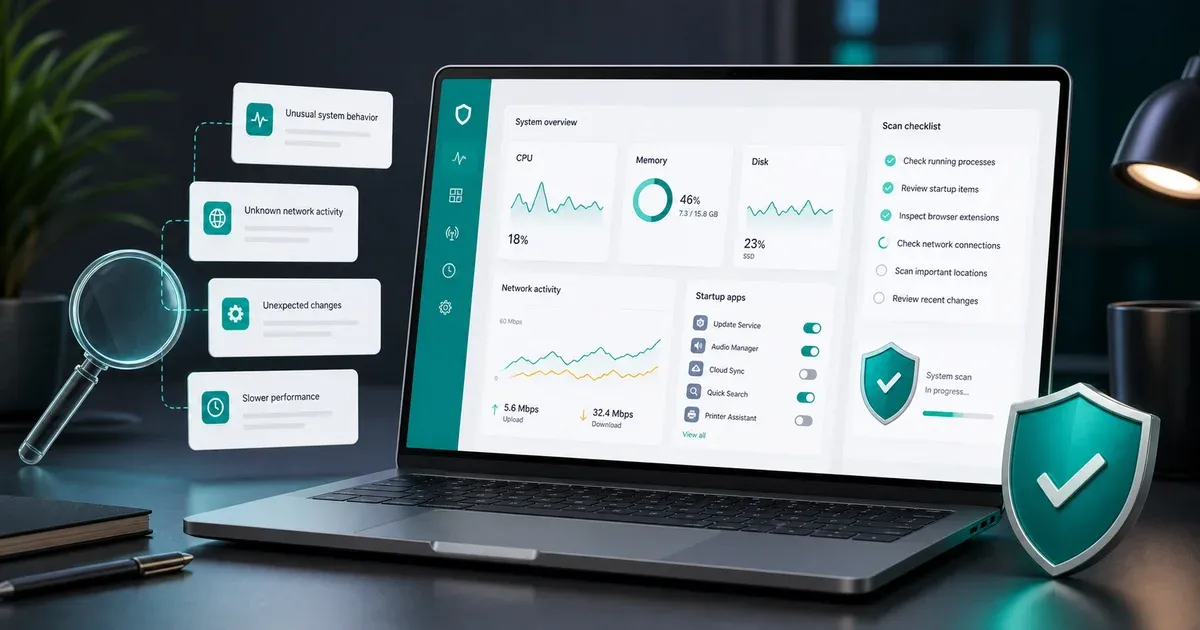
Startup programs: Task Manager (Ctrl+Shift+Esc) -> Startup apps tab. Anything you don’t recognize, or anything set to “Enabled” that you never installed on purpose, is worth researching by name before removing.
Running processes and network use: Task Manager -> Processes tab -> sort by CPU or Network usage. Look for process names that are close-but-not-quite matches to real Windows processes. That’s a common disguise tactic.
Installed programs: Settings -> Apps -> Installed apps. Sort by install date if you can pinpoint roughly when things started feeling off.
Browser extensions: check your browser’s extensions page directly, not just the toolbar icons. Malicious extensions often hide their icon.
Scheduled tasks: Open Task Scheduler and check the Task Scheduler Library for anything with a vague or random-looking name, especially ones set to run at login or repeatedly throughout the day.
A full Windows Security scan: Windows Security -> Virus & threat protection -> Scan options -> Full scan, not Quick scan. A full scan takes longer but checks far more of the disk.
Symptoms Are Not Proof
One slow afternoon doesn’t mean much on its own. Too many tabs, a nearly full drive, an overdue restart, or a browser extension gone wrong explain most single symptoms. What actually justifies a deeper look is two or three of these signs showing up together, especially if one of them is on this list’s second half: antivirus disabling itself, unexplained network spikes, or accounts/tasks you didn’t create. Isolated slowness is usually just an old laptop having a bad day.
Myth check
Symptoms that get misread
The goal is to avoid both panic and complacency. A symptom is a clue, not a verdict.
Myth
A slow computer means it has a virus.
Reality
Old hardware, too many startup apps, full storage, browser extensions, and bad updates are more common causes.
GuardPick take
Treat slowness as a prompt to check, not proof of infection.
Look for clusters: slowness plus popups, disabled security, network spikes, or unknown startup items.
Myth
If antivirus finds nothing, there is definitely no problem.
Reality
A clean scan is reassuring, but it does not explain every account compromise, browser hijack, or risky extension.
GuardPick take
A scan is one check, not the entire investigation.
Also review extensions, startup apps, scheduled tasks, and important account activity.
Myth
Cleanup should start by deleting random files.
Reality
Deleting the wrong file can break apps or destroy clues you need to understand what happened.
GuardPick take
Document first, remove second.
Capture names and locations, then use reputable security tools or Windows settings to remove what you understand.
What To Do If You Find Something
Disconnect from Wi-Fi first if you suspect anything involving stolen data or active file encryption. That stops further data leaving the machine while you work. Run the full scan described above rather than a quick one. If the scan finds and removes something, change your important passwords afterward, starting with email and banking, from a device you’re confident is clean. If files were encrypted or renamed, don’t pay anything before checking whether a known decryption tool exists for that specific ransomware family.
Windows Defender catches a real share of this on its own, and it’s worth understanding what it does and doesn’t cover before assuming you need to buy something. If your main concern is malicious websites, phishing pages, or fake verification screens, read the web-protection antivirus comparison before deciding whether a paid suite adds enough value for your household. If a scan turns up something Defender can’t fully remove, a dedicated cleanup scan from a tool built specifically for that is worth running as a second pass.
Decision flow
What your next move should be
Pick the response based on what you actually found, not how scary the popup looked.
- 01
Only one mild symptom
The PC is slow, but there are no popups, unknown startup apps, disabled security, or network spikes.
Troubleshoot performance first
- 02
Two or more suspicious signs
You see new extensions, changed search settings, unfamiliar apps, or unexplained network activity.
Run full scan and remove carefully
- 03
Accounts or files affected
Files changed, emails went out, passwords may be exposed, or ransomware behavior appears.
Disconnect and protect accounts